Frequently Asked Questions
How to benefit from live updates?
The software uses two tools to update automatically: wget and LhA. You need to make sure these two tools are installed on your Amiga, and also properly configured in the Dir Me Up preferences (under the "Third-Party Software" tab).
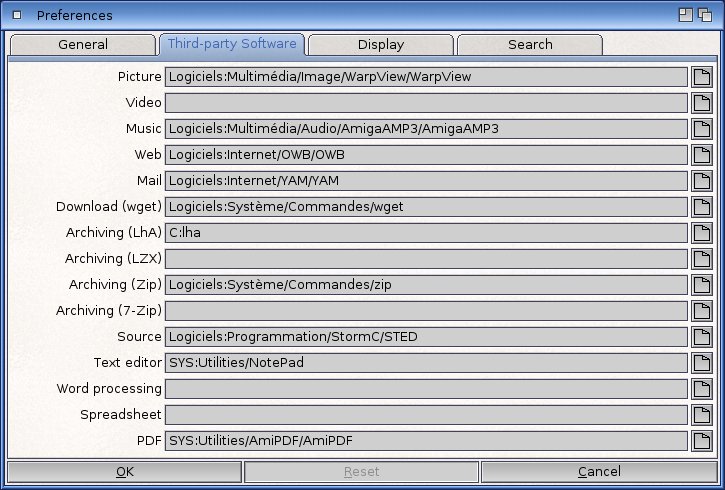
The full path for wget should be entered in the "Download (wget)" field, and for LhA, in the "Archiving (LhA)" field.
Also, make sure that the execution flag is active for the wget command, otherwise the following message will appear: [Dir Me Up] Can't get update number. If you use the one from AmigaOS 4.1 FE update 3, it should be OK. Be sure to select the LhA command, not another tool like UnArc, Avalanche, or others. It will be used in command-line mode (this is also the case for LZX, Zip, or 7-Zip).
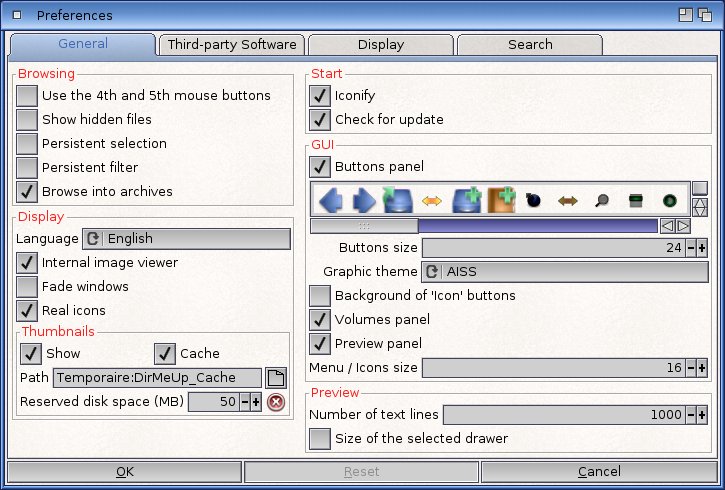
The update is detected as soon as the software starts if the "Check for updates" option is enabled (under the "General" tab, "Start" group):
Otherwise, you can trigger the update manually by selecting the Project > Upgrade option.
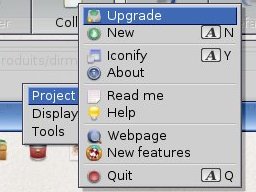
Dir Me Up will then be closed before performing the update and automatically restarted.
The "File > Extract" menu has no effect.
This option uses the setting defined in the DefaultIcons preference. For example, if your archive is of the LhA type, check the left-hand list to ensure there is a definition for archive/lharc. This is typically created by default by the system, whether on AmigaOS 4 or 3.2.
By clicking the [Change Icon...] button, then selecting [Open it in IconEdit], you will see the name of the associated icon (def_lharc). Exit IconEdit and go to Prefs/Env-Archive/Sys. There, you will find the list of icons associated with DefaultIcons.
Look for def_lharc: if it doesn't exist, duplicate it from the def_archive icon (using [Amiga]+[C]), then rename it to def_lharc. Finally, open the information window and select the extraction tool (UnArc, Avalanche, etc.) in the default tool. All done!
We recommend carefully reading the documentation that comes with the software. It will be very helpful.
Return to the software overview
Dir Me Up © 2013-2025 Boing Attitude :)

